
Creating a LaunchPad Account
To get started, log onto https://app.launchpadasap.com/ and click the “New to LaunchPad? Click here to create an account” button.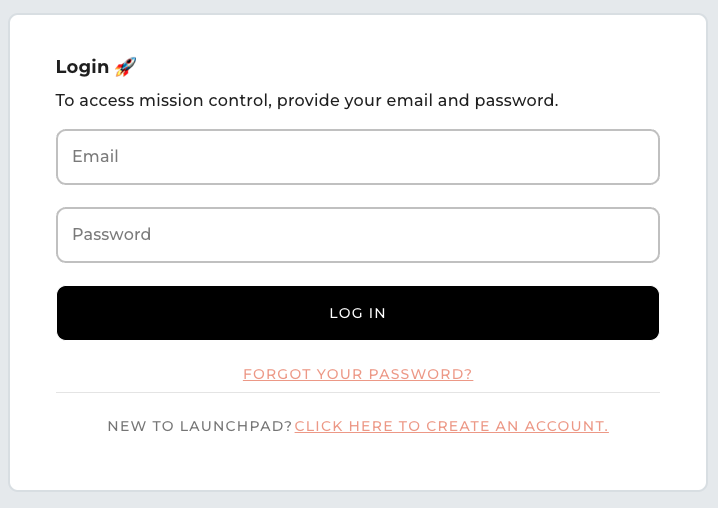
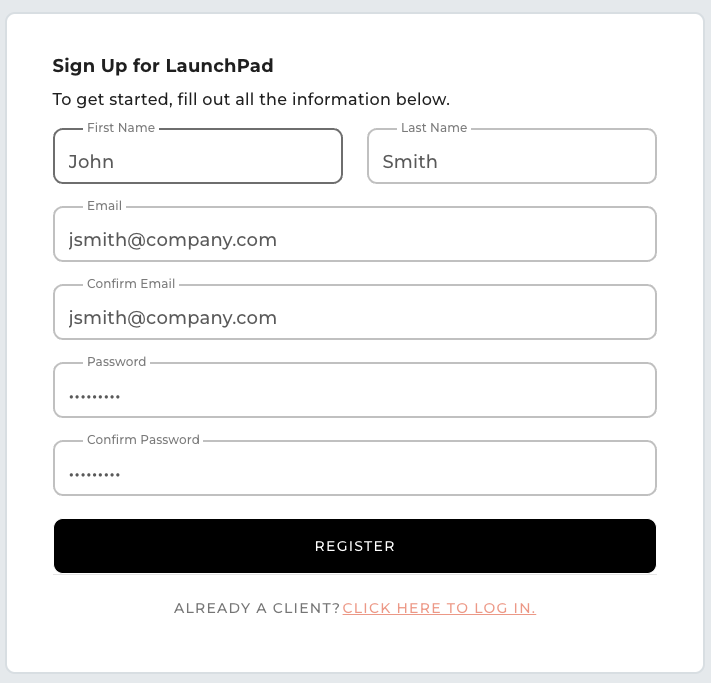
Complete the form and click the “Register” button at the bottom. You’ll be redirected to the login page.
Logging In for the First Time
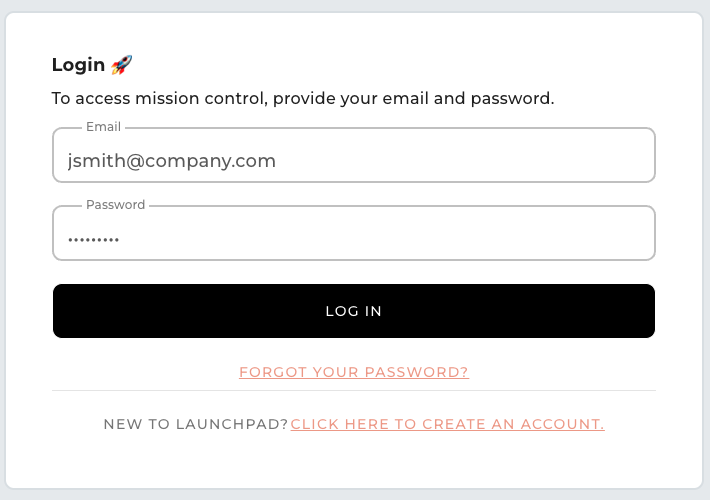
Using the email and password set in the previous step, log into your account.
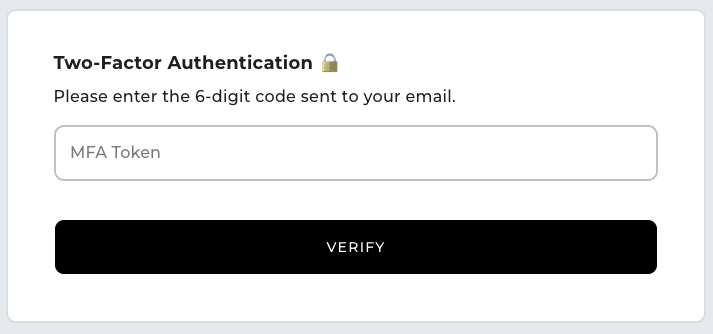
Once you click the “Log In” button, for security purposes, you’ll be emailed a 6-digit code. This will be a requirement every time you log in. If you wish, you can change your 2FA method to an app like Google Authenticator. Click here to jump to that step.
Once you receive the code, input it into the form and click the “Verify” button.
Once your second authentication method is verified, you’ll be logged in and prompted to create an organization.
Creating an Organization
Organizations provide a simple way to group assets and integrations, and manage which users have access to them. If you are a brand, you may only need a single organization for your Klaviyo integrations. You’ll be able to invite users on your team or at your agency.
If you are an Agency or a Parent Company with multiple brands under your umbrella, it may make sense to set up a respective organization for each brand.
When to Set Up Multiple Organizations
If you answer “yes” to all of the following questions, it is recommended that you set up multiple organizations.
- Do you manage multiple brands, either as an Agency or Partner Company?
- Will you be inviting users on your team or from agencies you work with?
- Are you particular about which integrations users can see/access?
Connecting a Klaviyo Account
After you create your organization, you will be brought to the main screen. In the middle of the page, you’ll see this message. Click the link to begin Klaviyo’s integration connection process.
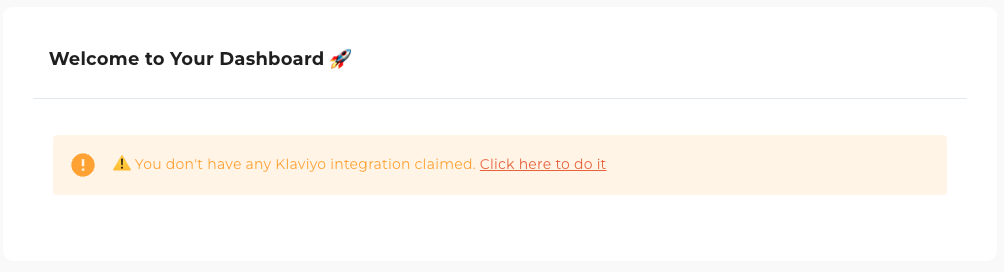
Once connected, you’ll see the Klaviyo integration on the left-hand side of the screen.

Next Steps
Once configured, the LaunchPad Production team will receive an alert. We’ll reach out with the appropriate next steps for the service you’re interested in.